Images as NumPy Arrays
This lesson puts everything from the series together on something you can see. A colour picture is just a 3D NumPy array:
- shape =
(height, width, 3): rows of pixels, columns of pixels, and 3 colour values per pixel (red, green, blue). - dtype =
uint8: whole numbers from 0 (no light) to 255 (full light).
So cropping is slicing, flipping is a negative step, brightness is addition, grayscale is a weighted average, and black & white is a boolean mask. Matplotlib's plt.imread and plt.imsave are only used to read and write the files; all the editing is plain NumPy.
Before you start: this is the only lesson that needs Matplotlib as well as NumPy. If you installed the packages from requirements.txt in lesson 01, you already have it. Otherwise run pip install matplotlib in your virtual environment. You also need a photo: save any .jpg file as data/sudheer_photo.jpg in the project folder, or change the file name in section 3.
How to run the examples
Create a new file named image_data.py in your NumpyTutorials folder (see the setup in lesson 01). Any name works; this one just matches the topic. Start the file with these lines:
from pathlib import Path

import matplotlib.pyplot as plt
import numpy as np

DATA = Path(__file__).parent / "data"
IMAGES = Path(__file__).parent / "output" / "images"
IMAGES.mkdir(parents=True, exist_ok=True)
Then copy the examples of this page into the same file, one after another, in the order shown, and run it with python image_data.py (with your virtual environment active). Some examples use variables created in earlier ones, so keep everything in the one file. Each Output box shows what that example prints.
DATA is the data folder where your photo is, and IMAGES is an output/images folder the program creates for the pictures it makes. Add this small helper after those lines; it saves a picture into that folder:
def save(name, image, **options):
    plt.imsave(IMAGES / name, image, **options)
    print("   saved output/images/" + name)
1. A picture made from an array
Let's draw a simple picture without any drawing program, just by filling parts of an array with colours:
scene = np.zeros((300, 450, 3), dtype=np.uint8)    # 300 rows, 450 columns, black
scene[:200] = [135, 206, 235]                      # top 200 rows: sky blue
scene[200:] = [34, 139, 34]                        # bottom 100 rows: grass green
scene[230:260, 50:400] = [139, 90, 43]             # a brown path (rows 230-259, columns 50-399)

rows, cols = np.ogrid[:300, :450]                  # row numbers (300, 1) and column numbers (1, 450)
sun = (rows - 80) ** 2 + (cols - 340) ** 2 <= 45 ** 2      # True inside a circle
scene[sun] = [255, 215, 0]                         # a yellow sun (boolean mask!)

print("shape:", scene.shape, " dtype:", scene.dtype)
print("sky pixel   (20, 20)  :", scene[20, 20])
print("sun pixel   (80, 340) :", scene[80, 340])
print("grass pixel (280, 20) :", scene[280, 20])
save("01_scene.png", scene)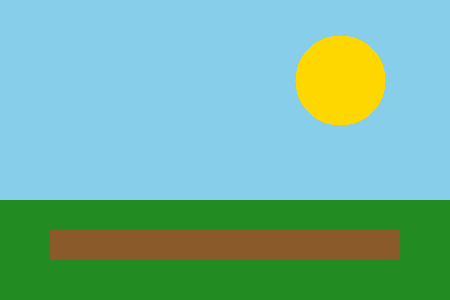
np.zeros((300, 450, 3), dtype=np.uint8)is a black picture: 300 rows, 450 columns, 3 colours.- Assigning a list of 3 numbers to a slice paints every pixel in it:
scene[:200] = [135, 206, 235]paints the top 200 rows sky blue (broadcasting!). scene[230:260, 50:400]is a rectangle, made with a row slice and a column slice.- For the round sun,
np.ogridgives the row and column numbers. The circle formula (row - 80)² + (col - 340)² ≤ 45² builds a boolean mask that is True inside the circle, andscene[sun] = ...paints only those pixels.
2. Gradient with broadcasting
height, width = 200, 400
red = np.linspace(0, 255, width)[np.newaxis, :]        # changes left -> right, shape (1, 400)
blue = np.linspace(255, 0, height)[:, np.newaxis]      # changes top -> bottom, shape (200, 1)

gradient = np.zeros((height, width, 3), dtype=np.uint8)
gradient[..., 0] = red                                 # broadcast to (200, 400)
gradient[..., 2] = blue
print("corners:", gradient[0, 0], gradient[0, -1], gradient[-1, 0], gradient[-1, -1])
save("02_gradient.png", gradient)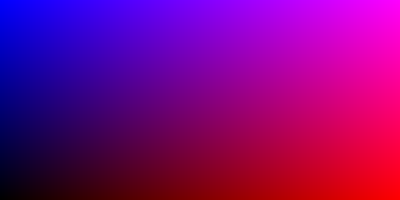
linspace makes 400 red values from 0 to 255 as a row (1, 400), and 200 blue values from 255 to 0 as a column (200, 1). Assigning them to the red and blue channels (gradient[..., 0], where ... means "all the earlier axes") broadcasts each one over the whole 200x400 picture (lesson 10). The corners show the result: top-left blue, top-right red + blue (magenta), bottom-right red, bottom-left black.
3. Reading a photo
Now a real photo. plt.imread reads the JPEG file from the project's data folder and gives back a NumPy array:
photo = plt.imread(DATA / "sudheer_photo.jpg")      # a JPEG file becomes a NumPy array

print("shape :", photo.shape, "-> height, width, colours")
print("dtype :", photo.dtype)
print("pixels:", photo.shape[0] * photo.shape[1])
print("top-left pixel (R, G, B):", photo[0, 0])
print("mean of each colour      :", photo.mean(axis=(0, 1)).round(1))
save("03_original.png", photo)
The photo is 260 pixels high and 195 wide, with 3 colours, so 260 x 195 x 3 = 152,100 numbers. photo[0, 0] is the top-left pixel: [252 252 250] is almost pure white, the wall behind. mean(axis=(0, 1)) averages over all rows and columns and leaves one average per colour (lesson 11).
4. Grayscale
weights = np.array([0.299, 0.587, 0.114])            # how bright each colour looks to us
gray = (photo @ weights).astype(np.uint8)            # (260, 195, 3) @ (3,) -> (260, 195)
print("gray shape:", gray.shape, " min:", gray.min(), " max:", gray.max())
save("04_gray.png", gray, cmap="gray")
A gray pixel has one brightness value instead of three. Our eyes are most sensitive to green and least to blue, so the standard formula weights them: 0.299 x R + 0.587 x G + 0.114 x B. photo @ weights does that for all 50,700 pixels at once: (260, 195, 3) @ (3,) gives (260, 195) (lesson 13). cmap="gray" tells Matplotlib to draw a 2D array in shades of gray.
5. Crop, flip and rotate
face = photo[0:130, 35:165]                           # rows 0-129, columns 35-164 (head and shoulders)
print("crop shape   :", face.shape)
save("05_crop.png", face)

save("06_mirror.png", photo[:, ::-1])                 # reverse the columns
save("07_upside_down.png", photo[::-1])               # reverse the rows
rotated = np.rot90(photo)                             # 90 degrees to the left
print("rotated shape:", rotated.shape, "(height and width swapped)")
save("08_rotated.png", rotated)![The photo cropped to head and shoulders with array slicing photo[0:130, 35:165]](/img/Python/Numpy/05_crop.png?v=gQ2nrmf8nf_lHrxbl_aQ50FvAFIlsCIM73Qp0DezE7Q)
![The photo mirrored left to right with photo[:, ::-1]](/img/Python/Numpy/06_mirror.png?v=6_VJjxlXn7iE_zDCOLnrXLxlcrOBi2AXY5fdmCU-Neg)
- Crop = slice:
photo[0:130, 35:165]keeps rows 0 to 129 and columns 35 to 164, the head and shoulders. - Mirror = reverse the columns:
photo[:, ::-1]. - Upside down = reverse the rows:
photo[::-1]. - Rotate:
np.rot90turns it 90° to the left; height and width swap places.
Crop, mirror and upside-down are all views: no pixel is copied until the file is saved (lesson 06).
6. Brightness
To make a photo brighter, add a number to every pixel. But watch what happens with uint8:
wrong = photo + 80                                    # uint8 wraps around above 255!
print("pixel 230 + 80 in uint8 :", (np.array([230], dtype=np.uint8) + 80)[0])
save("09_brighter_wrong.png", wrong)

brighter = np.clip(photo.astype(np.int16) + 80, 0, 255).astype(np.uint8)
print("pixel 230 + 80 with clip:", np.clip(np.array([230], dtype=np.int16) + 80, 0, 255)[0])
save("10_brighter.png", brighter)

contrast = np.clip((photo.astype(np.float32) - 128) * 1.6 + 128, 0, 255).astype(np.uint8)
save("11_contrast.png", contrast)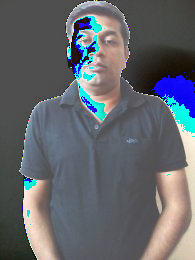
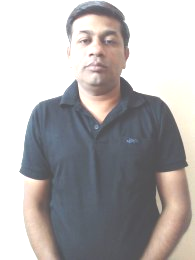
photo + 80staysuint8, which stops at 255. A bright pixel of 230 + 80 = 310 wraps around to 310 - 256 = 54, so bright areas suddenly turn dark, giving the strange colours in the first picture. This is the overflow from lesson 03.- The fix: convert to a bigger type (
int16), add, clip to 0..255 (lesson 14), and convert back touint8. Now 230 + 80 becomes 255, pure white, as expected. - Contrast works the same way: move values away from the middle (128) by multiplying, then clip.
7. Channels and negative
only_red = photo.copy()
only_red[..., 1:] = 0                                 # green and blue to 0
save("12_red_channel.png", only_red)

negative = 255 - photo                                # broadcasting with a scalar
print("negative of [10, 200, 255]:", 255 - np.array([10, 200, 255]))
save("13_negative.png", negative)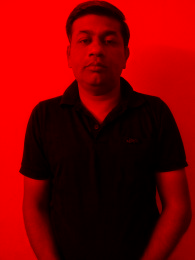
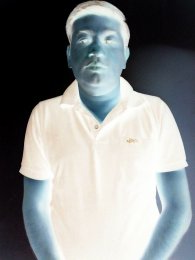
only_red[..., 1:] = 0sets green and blue (channels 1 and 2) to zero for every pixel, leaving only red.- The negative is
255 - photo: dark becomes light and colours flip to their opposites. It is one line, thanks to broadcasting with a single number.
8. Resize by slicing and threshold
small = photo[::2, ::2]                               # every 2nd row and column
print("small shape:", small.shape, f"({small.size / photo.size:.1%} of the data)")
save("14_small.png", small)

black_white = np.where(gray > 100, 255, 0).astype(np.uint8)
print("white pixels:", f"{(black_white == 255).mean():.1%}")
save("15_black_white.png", black_white, cmap="gray")
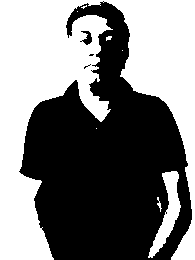
photo[::2, ::2]keeps every 2nd row and column: a picture half as big in each direction, so about 1/4 (25%) of the data. (Real resizing software averages neighbouring pixels for a smoother result.)np.where(gray > 100, 255, 0)turns every pixel brighter than 100 white and the rest black. The light wall becomes white and the dark shirt and hair become black. This is called thresholding, and it is the first step of many document scanners and OCR programs.
9. Brightness histogram
counts, edges = np.histogram(gray, bins=8, range=(0, 256))
for count, low in zip(counts, edges[:-1]):
print(f"{int(low):>3}-{int(low) + 31:<3} {'#' * int(count / counts.max() * 40)} {count}")np.histogram counts how many pixels fall into each brightness band. This photo has two big groups: very dark pixels (the black shirt and hair) and very bright ones (the white wall), with fewer pixels in between. Photo editors show exactly this kind of histogram to help you adjust exposure.
Exercises
Try these exercises on your own before moving on:
- Make a 200x200 image with a red top half and a blue bottom half.
- Crop the bottom-right quarter of the photo.
- Make the photo darker by 60 (use clip so nothing wraps around).
- Keep only the green channel.
- Put the original and the mirrored photo side by side with np.hstack.
Summary
- A colour image is a
uint8array of shape(height, width, 3); a gray image is(height, width). - Crop with slices, flip with
[::-1], rotate withnp.rot90; these are views, so they are instant. - Grayscale is a weighted average of R, G and B:
photo @ [0.299, 0.587, 0.114]. - Brightness and contrast need a bigger dtype plus
np.clip, oruint8wraps around. - Boolean masks and
np.wheredraw shapes and make black-and-white images. - Everything in this series (slicing, broadcasting, dtypes, masks, aggregations) works directly on pictures.
This is the last lesson of the series. Go back to the start of the NumPy series.